
Seedance 2.5
Smooth motion and natural choreography.
VideoGrid AI
Use an AI video generator to turn a text prompt or uploaded still into a short clip.
In VideoGrid AI, use the AI video generator with a text prompt or still image, set the model, duration, resolution, and aspect ratio, then review the clip in one workspace.
Video models: MiniMax H3, Seedance 2.5, Veo 3.1, Seedance 2.0, and Kling 4.0
AI creation in one workspace
In VideoGrid AI, start with a text prompt or uploaded still image, shape the shot with the AI video generator's model controls, and review each rendered take.
Describe one shot with a subject, action, camera move, setting, and light. The AI video generator returns a clip you can review and revise.
Upload a still image, describe what should move, and use it as the opening frame for an image-to-video clip.
Choose MiniMax H3, Seedance 2.5, Veo 3.1, Seedance 2.0, or Kling 4.0, then set the supported duration, resolution, and aspect ratio.
Use an uploaded still as a visual reference or as the opening frame for a supported video workflow.
How the AI video generator works
The workflow supports text-to-video and image-to-video, then returns a preview you can download or keep in your library.
Describe the subject, action, camera movement, lighting, and mood in a single prompt for the AI video generator.
Choose MiniMax H3, Seedance 2.5, Veo 3.1, Seedance 2.0, or Kling 4.0 for the shot you want.
Upload an image when the first frame should guide the motion, then add the movement you want to see.
Review the AI video generator's returned clip in your conversation or library, then download it when ready.
Prompt ideas for an AI video generator
Use these practical examples to plan a focused shot before you open the AI video generator.
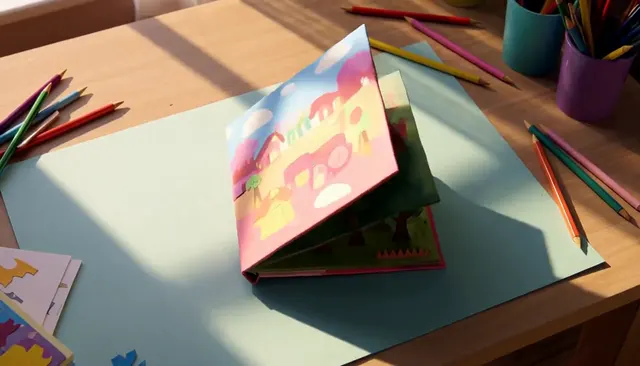
Write the subject, visible action, camera move, and light in one text-to-video prompt, then review the returned clip.
Text-to-video prompt
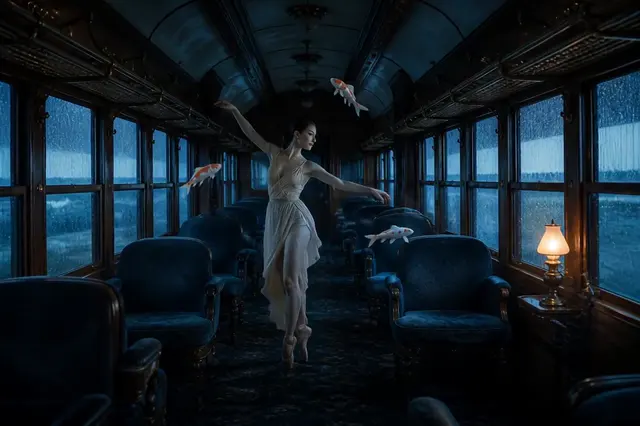
Upload a starting image and describe a blink, turn, breeze, or slow push-in for an image-to-video shot.
Image-to-video prompt
Choose a model, duration, resolution, aspect ratio, and optional audio setting that match the shot.
Model and clip settings
VideoGrid AI modes
Compare text prompts, image inputs, model settings, durations, resolutions, and aspect ratios in this AI video generator.
Read the external tool directoryFREQUENTLY ASKED QUESTIONS
VideoGrid AI creates short videos from text prompts (text-to-video) or uploaded still images (image-to-video). Choose a supported model, describe the shot, and review the generated clip in your workspace.
Yes. Upload a still image as the opening frame, describe the motion, and generate an image-to-video clip. This works for portraits, product turntables, and landscape motion.
The creator includes MiniMax H3, Seedance 2.5, Veo 3.1, Seedance 2.0, and Kling 4.0. Available durations, resolutions, framing, and audio settings vary by model.
Options depend on the selected model and generation mode. Before you submit, the creator shows the supported clip duration, resolution, aspect ratio, and audio controls for that workflow.
Describe one shot with the subject, visible action, camera movement, setting, light, mood, and details that should stay consistent. Keeping one primary action makes a text-to-video prompt easier to review and revise.
Video generation can take several minutes depending on the queue and selected settings. The conversation shows task progress, and the finished clip appears there when it is ready.
Credits depend on the selected model, clip length, resolution, and optional settings. The estimate appears before you submit, and failed generation tasks follow the credit refund flow.
Yes. Chats, generated files, and credits are tied to your account, so sign in before generating a video in the creator.
Before publishing, review the Terms of Service and any model-specific terms that apply to your work. The public page does not make a blanket commercial-rights promise.
Prompts and uploaded media are used to fulfill the selected generation request. Read the Privacy Policy for the current handling of account, prompt, upload, and generated-file information.
If you searched for “Vidogrid AI,” “Video Grid AI,” or “videogrid,” you may be looking for VideoGrid AI. Create AI video clips from text prompts or uploaded still images.
Create a clip
Open the AI video generator to write a prompt, animate an uploaded still, and review the result.